

How to Install and Utilize Emergency Medical ID on iPhone for Safety
Your iPhone is not only a communications device—it can be an important safety device in case of emergencies. The Emergency Medical ID iPhone feature enables first responders to view important medical information, even if your phone is locked. Activating this feature guarantees that important information such as allergies, medications, and emergency contacts are easily accessible when seconds count.
In this manual, we will teach you all the things you must learn about enabling and employing Emergency Medical ID on iPhone so that you can be ready in the event of an emergency.
What Is iPhone Emergency Medical ID?
The Emergency Medical ID feature on iPhone is an in-built feature in the Health app that keeps your vital medical data. It enables first responders and medical professionals to retrieve vital information like:
Name and birth date
Medical conditions
Allergies and reactions
Medications
Blood type
Emergency contacts
Keeping this information easily accessible can save your life when you are in a condition that prevents you from communicating your medical history.
Setting Up Emergency Medical ID on iPhone
Setting up your Emergency Medical ID on iPhone is easy and provides first responders with access to your important medical information. Just follow these steps:
Open the Health App: Open the Health app on your iPhone.
Tap on Your Profile Picture: In the top-right corner of the screen.
Choose 'Medical ID' and Tap 'Create Medical ID': If you already have one, tap 'Edit.'
Add Your Medical Information: Add appropriate information, such as medical conditions, allergies, medications, and blood type.
Add Emergency Contacts: Swipe down and hit 'Add Emergency Contact.' Pick an existing contact on your list and define how the person relates to you.
Make 'Show When Locked' available: Confirm 'Show When Locked' is set to let responders view your info from the locked screen.
Click 'Done' to Save: After inputting all your data, hit 'Done' and save your iPhone Emergency Medical ID profile.
How to View Emergency Medical ID iPhone
During a medical emergency, first responders have quick access to your Medical ID without having to unlock your phone. Here's how they'll do it:
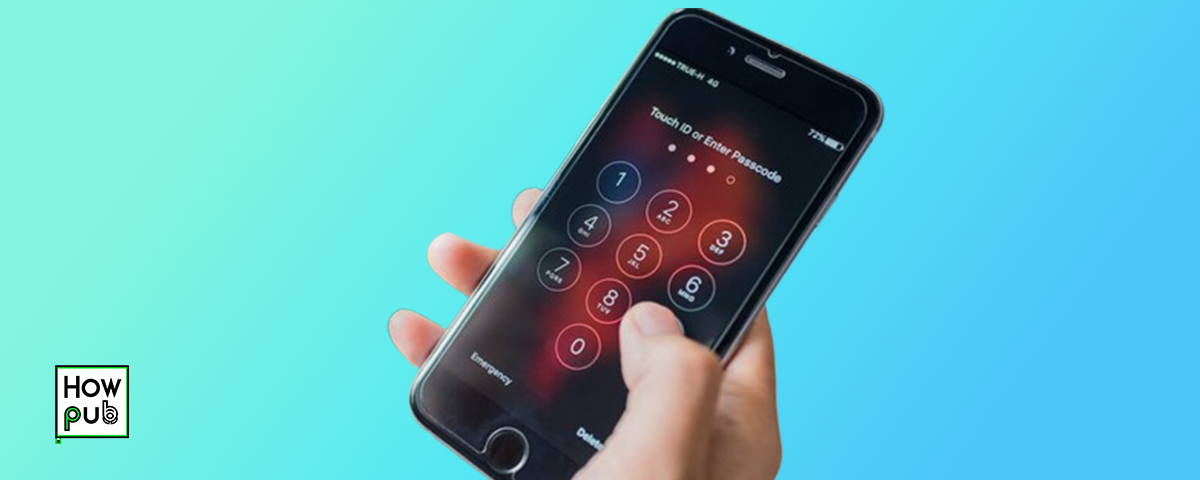
Wake the iPhone up and swipe up (Face ID) or press the Home button (Touch ID).
Click 'Emergency' in the lower-left corner of the screen.
Choose 'Medical ID' to see the information stored in there.
This is rapid access, and it could give emergency staff critical information for them to be able to make decisions regarding your treatment.
How to Update Emergency Medical ID on iPhone
Keeping your Emergency Medical ID iPhone information current is critical. To change it, simply follow these instructions:
Launch the Health app from your iPhone.
Tap your Profile Picture in the top-right corner.
Choose Medical ID and press Edit.
Enter any new outdated information, e.g., recent medical conditions, emergency contacts, etc.
Tap Done to proceed with saving.
Why Emergency Medical ID Is Important
Enabling your Emergency Medical ID on iPhone is important for several reasons:
Fast Access for First Responders: Doctors can have immediate access to your health information in emergency situations.
Life-Saving in Life-Threatening Situations: In case of severe allergies, medical conditions, or special medication requirements, first responders can provide proper treatment quicker.
Alerts Emergency Contacts: Your emergency contacts can be alerted in the event of an emergency, giving them your location.
Pairing Emergency Medical ID with Emergency SOS
Your Emergency Medical ID iPhone is fully integrated with the Emergency SOS feature. When you enable Emergency SOS, your phone sends an automatic message to your emergency contacts and shows your location. Here's how to use Emergency SOS:
On Face ID iPhones (iPhone X or later): Hold down the side button and one of the volume buttons at the same time until the Emergency SOS slider is visible. Slide the slider to call emergency services or just hold down the buttons until the countdown finishes, and the call is automatically made.
On Touch ID iPhones (iPhone 8 and below): Double-click the side or top button five times to activate Emergency SOS.
Using Emergency Medical ID with Apple Watch
If you have an Apple Watch, you can view your Emergency Medical ID from your wrist. Here's how:
Press and Hold the Side Button on your Apple Watch.
Swipe Right on Medical ID to view your health information.
Use Fall Detection (Apple Watch Series 4 and later): If you take a hard fall and don't move, your Apple Watch can call emergency services and alert your contacts with Emergency SOS.
What to Do If You Accidentally Trigger Emergency SOS
If you accidentally trigger Emergency SOS, do the following:
If the call is in countdown mode, tap 'Stop Calling' before the call is made.
If the call is already established, remain on the line and let the emergency operator know that it was a false alarm.
Advanced Features: Emergency SOS via Satellite
For iPhone 14 and later, Apple has added Emergency SOS via Satellite. This feature enables users to send emergency messages even if there is no cellular or Wi-Fi connection. To activate it:
Try to place an emergency call.
If there is no service, your iPhone will ask you to connect to a satellite.
Follow the instructions on screen to align with a satellite.
Send an emergency text.
This will be very helpful for travelers, hikers, and outdoor enthusiasts who might be in a remote area without cellular service.
Final Thoughts
Enabling your Emergency Medical ID on iPhone is an easy but effective measure toward guaranteeing your safety. From giving first responders vital medical details to alerting emergency contacts in emergency situations, this feature is an essential tool for all iPhone users.
Spent a few minutes today enrolling your Emergency Medical ID iPhone and amplifying your readiness for any sort of emergency. Your safety and health are worth it!


Write a comment ...