

iPhone Instructions for Beginners: A Comprehensive Guide
In today’s digital age, smartphones have become an essential part of daily life, and the iPhone stands out as one of the most user-friendly devices. Whether you’re a first-time iPhone user or transitioning from another smartphone, understanding the basics is crucial. This guide provides step-by-step iPhone instructions for beginners, covering setup, navigation, essential apps, and customization tips.
Step 1: Setting Up Your iPhone
Before you can start using your iPhone, you need to set it up correctly. Follow these steps to get started:
1. Turn On Your iPhone
Press and hold the Side button (on the right side of the device) until you see the Apple logo.
If your iPhone has a Home button, press and hold the Power button on the top.
2. Choose Your Language and Region
Swipe up or press the Home button (depending on your model).
Select your preferred language and region.
3. Connect to Wi-Fi
Choose a Wi-Fi network and enter the password.
If you don’t have Wi-Fi, you can use a cellular network.
4. Sign in with Your Apple ID
Enter your Apple ID credentials or create a new Apple ID.
This account allows you to access the App Store, iCloud, and other Apple services.
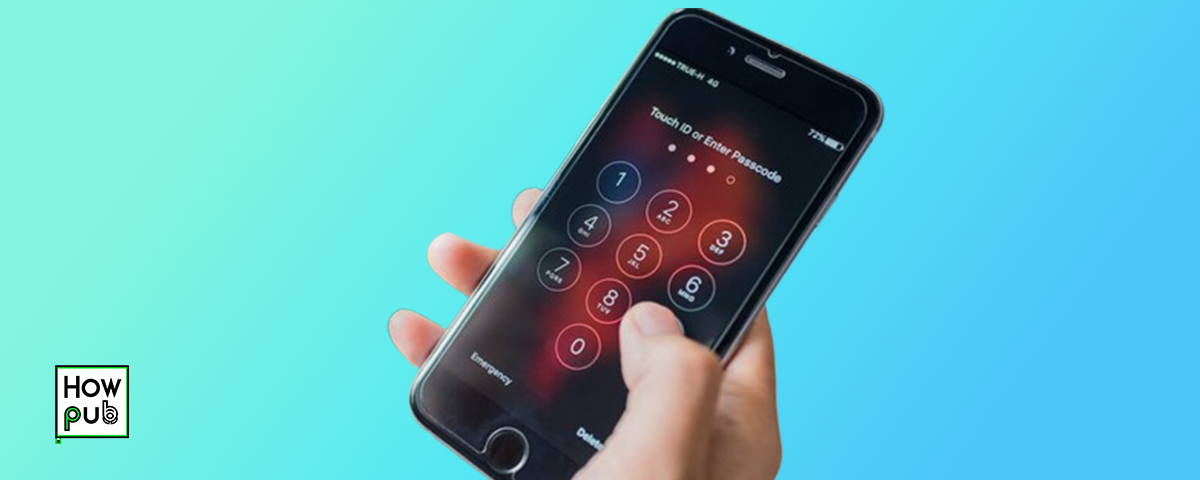
5. Enable Face ID or Touch ID
Follow the on-screen instructions to set up Face ID (for newer models) or Touch ID (for older models).
This feature enhances security and allows quick unlocking.
6. Set Up Siri
Enable Siri for voice assistance.
You can activate Siri by saying “Hey Siri” or pressing the Side button.
Step 2: Navigating Your iPhone
Learning how to navigate your iPhone efficiently improves your user experience.
1. Understanding Basic Gestures
Tap to open an app.
Swipe up to go to the Home Screen (for models without a Home button).
Swipe down to access the Control Center.
Swipe left or right to switch between apps.
2. Using the Control Center
Swipe down from the top-right corner to access shortcuts like Wi-Fi, Bluetooth, and Brightness.
Customize the Control Center by going to Settings > Control Center.
3. Multitasking and Switching Apps
Swipe up from the bottom and pause to view recently used apps.
Swipe left or right to switch between apps.
Step 3: Downloading Essential Apps
Your iPhone comes with pre-installed apps, but you can add more from the App Store.
1. Open the App Store
Tap the App Store icon on your Home Screen.
Use the search bar to find an app.
2. Download Apps
Tap Get or the price button to download an app.
Sign in with your Apple ID if prompted.
3. Recommended Apps for Beginners
Safari (Web Browsing)
Messages (Texting & iMessage)
Photos (Manage Your Images)
Camera (Take Pictures & Videos)
Maps (Navigation & Directions)
Step 4: Customizing Your iPhone
Personalizing your iPhone enhances usability and aesthetics.
1. Change Wallpaper
Go to Settings > Wallpaper > Choose a New Wallpaper.
Select from Apple’s gallery or your own photos.
2. Organize Your Home Screen
Press and hold an app icon until it wiggles.
Drag the app to reposition or place it in a folder.
3. Set Up Widgets
Long-press the Home Screen and tap the + button (top-left corner).
Choose a widget (e.g., Weather, Calendar) and add it.
Step 5: Making Calls and Sending Messages
1. Making Phone Calls
Open the Phone app.
Tap Contacts or Keypad to dial a number.
Press the green call button to initiate a call.
2. Sending Messages
Open the Messages app.
Tap the compose button (top-right corner).
Type the contact’s name or number.
Enter your message and tap Send.
Step 6: Managing iPhone Settings
1. Adjusting Sound and Notifications
Go to Settings > Sounds & Haptics to adjust volume and ringtone.
Customize notifications in Settings > Notifications.
2. Enabling Dark Mode
Go to Settings > Display & Brightness.
Select Dark mode for a comfortable viewing experience.
3. Updating Your iPhone
Regular updates enhance security and add new features.
Go to Settings > General > Software Update.
Step 7: Taking Photos and Videos
1. Using the Camera
Open the Camera app.
Swipe left or right to switch between modes (e.g., Photo, Video, Portrait).
Tap the shutter button to take a picture.
2. Editing Photos
Open the Photos app and select an image.
Tap Edit to apply filters, crop, or adjust brightness.
Step 8: Backing Up Your iPhone
Protect your data by backing up your iPhone regularly.
1. Using iCloud Backup
Go to Settings > [Your Name] > iCloud > iCloud Backup.
Tap Back Up Now.
2. Using iTunes (for older macOS or Windows PCs)
Connect your iPhone to a computer.
Open iTunes and select your device.
Click Back Up Now.
Conclusion
Mastering your iPhone as a beginner doesn’t have to be overwhelming. By following these iPhone instructions for beginners, you can set up, navigate, customize, and use your device efficiently. As you become more familiar with its features, you’ll unlock even greater possibilities to enhance your daily life. For more tech guides and tutorials, visit How.pub and stay ahead with the latest iPhone tips!


Write a comment ...