

How to Securely Store Passwords on iPhone
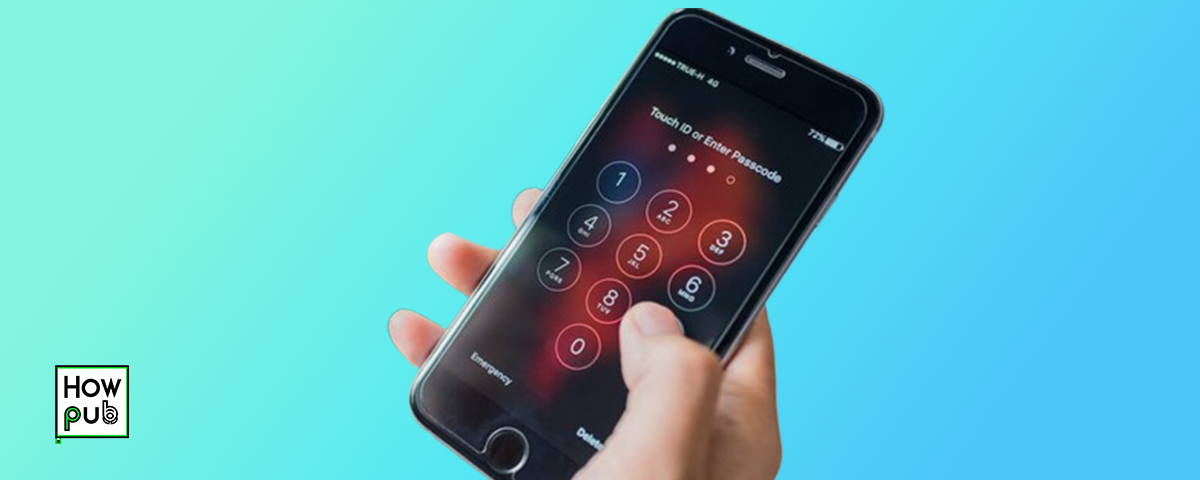
In today’s digital world, managing multiple passwords can be challenging. Using the same password for different accounts is risky, but remembering unique ones for each login is nearly impossible. Thankfully, iPhone users have several reliable options to store passwords securely. Whether through Apple’s built-in iCloud Keychain or third-party password managers, keeping credentials safe has never been easier. This guide will help users in Romania and beyond learn how to securely store passwords on iPhone and maintain top-notch digital security.
1. Using iCloud Keychain for Password Management
Apple’s iCloud Keychain is a built-in password manager that securely stores login credentials, credit card information, and Wi-Fi passwords. It ensures seamless password access across Apple devices.
How to Set Up iCloud Keychain:
Open Settings on your iPhone.
Tap your Apple ID at the top.
Select iCloud > Keychain.
Toggle iCloud Keychain to On.
Authenticate with your Apple ID password or Face ID/Touch ID.
With iCloud Keychain enabled, your iPhone will automatically suggest strong passwords and store them securely.
2. Accessing and Managing Saved Passwords
You can quickly access, edit, or delete saved passwords directly from your iPhone’s settings.
How to View Saved Passwords:
Open Settings.
Scroll down and tap Passwords.
Authenticate using Face ID, Touch ID, or your passcode.
Tap on an account to view, copy, or update credentials.
To delete a saved password, swipe left on the account and tap Delete.
3. Enabling Two-Factor Authentication (2FA) for Extra Security
Two-Factor Authentication (2FA) adds an extra layer of security by requiring an additional verification step when logging in.
How to Enable 2FA on Your iPhone:
Open Settings.
Tap your Apple ID.
Select Password & Security.
Tap Two-Factor Authentication and follow the setup instructions.
Many services, including email, banking, and social media, support 2FA. Enabling it provides an extra shield against unauthorized access.
4. Using a Third-Party Password Manager
While iCloud Keychain is effective, third-party password managers offer additional features like cross-platform compatibility and password sharing.
Popular Password Managers for iPhone:
1Password – Secure password storage, two-factor authentication, and easy syncing.
LastPass – User-friendly interface, secure password vault, and auto-fill functionality.
Dashlane – Dark web monitoring, password health reports, and encrypted storage.
Setting Up a Third-Party Password Manager:
Download your preferred password manager from the App Store.
Create an account and set a strong master password.
Import or manually add your passwords.
Enable Face ID or Touch ID for quick access.
Set it as your default password manager via Settings > Passwords > AutoFill Passwords.
5. Best Practices for Creating and Storing Strong Passwords
A strong password is essential for securing your online accounts. Follow these tips:
Use a Password Generator: iCloud Keychain and password managers generate complex, random passwords.
Avoid Common Words: Stay away from easily guessable passwords like “123456” or “password123.”
Mix Characters: Use a combination of uppercase and lowercase letters, numbers, and symbols.
Unique Passwords for Each Account: Never reuse passwords across different platforms.
Update Passwords Regularly: Change your passwords periodically, especially for sensitive accounts.
Conclusion
Managing passwords effectively is a crucial aspect of online security. By utilizing iCloud Keychain or a trusted third-party password manager, enabling two-factor authentication, and following best practices for password creation, you can safeguard your credentials. Protect your digital life by implementing these security measures today. Whether in Romania or anywhere else, iPhone users can store passwords on iPhone and keep their personal information safe from cyber threats.


Write a comment ...